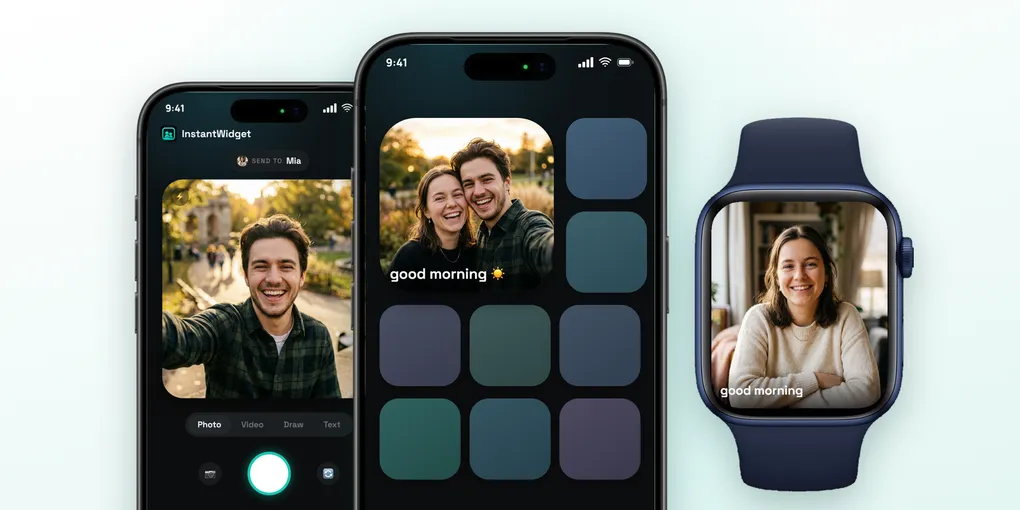
How to Add a Photo Widget to Your iPhone Home Screen (and Share It With Your Partner)
You unlock your iPhone dozens of times a day, and the Home Screen is the one place you always look. A photo of someone you love sitting there is seen far more often than the same photo buried in a chat.
This guide shows how to add a photo widget to the iPhone Home Screen, which size to choose, and how to make it show what your partner or best friend sends you. We used the apps, tested every feature and did a full review.
Table of Contents
- How to Add a Photo Widget in Four Steps
- Small or Medium: Which Size to Choose
- A Widget Your Partner Updates
- Connect and Send
- 100% Free
- Suggestion: A Photo Widget for Two
How to Add a Photo Widget in Four Steps
Every widget gets onto the Home Screen the same way. Install the app first, then:
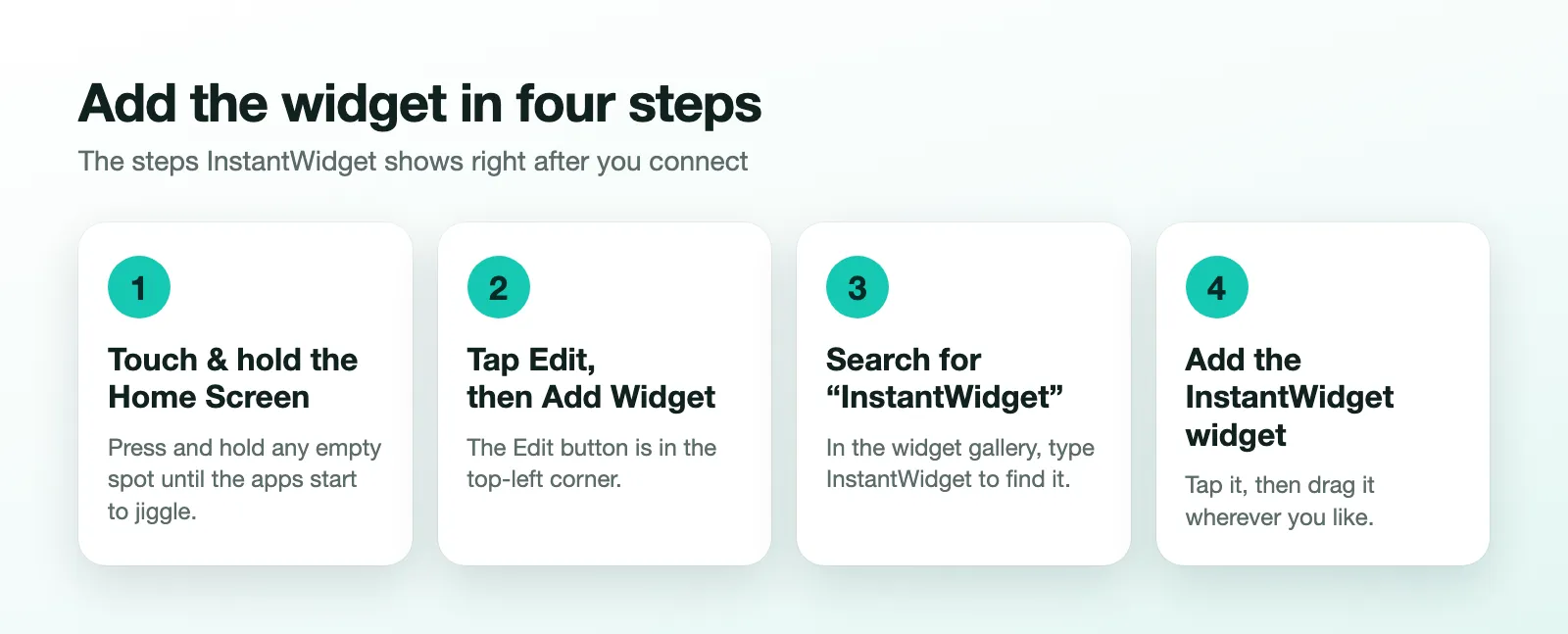
- Touch and hold the Home Screen. Press any empty spot until the apps start to jiggle
- Tap Edit, then Add Widget. The Edit button is in the top-left corner
- Search for the app’s name. In the widget gallery, type it to find it
- Add the widget. Tap it, then drag it wherever you like
That is the whole process. These are the same four steps InstantWidget shows right after you connect with your partner.
Small or Medium: Which Size to Choose
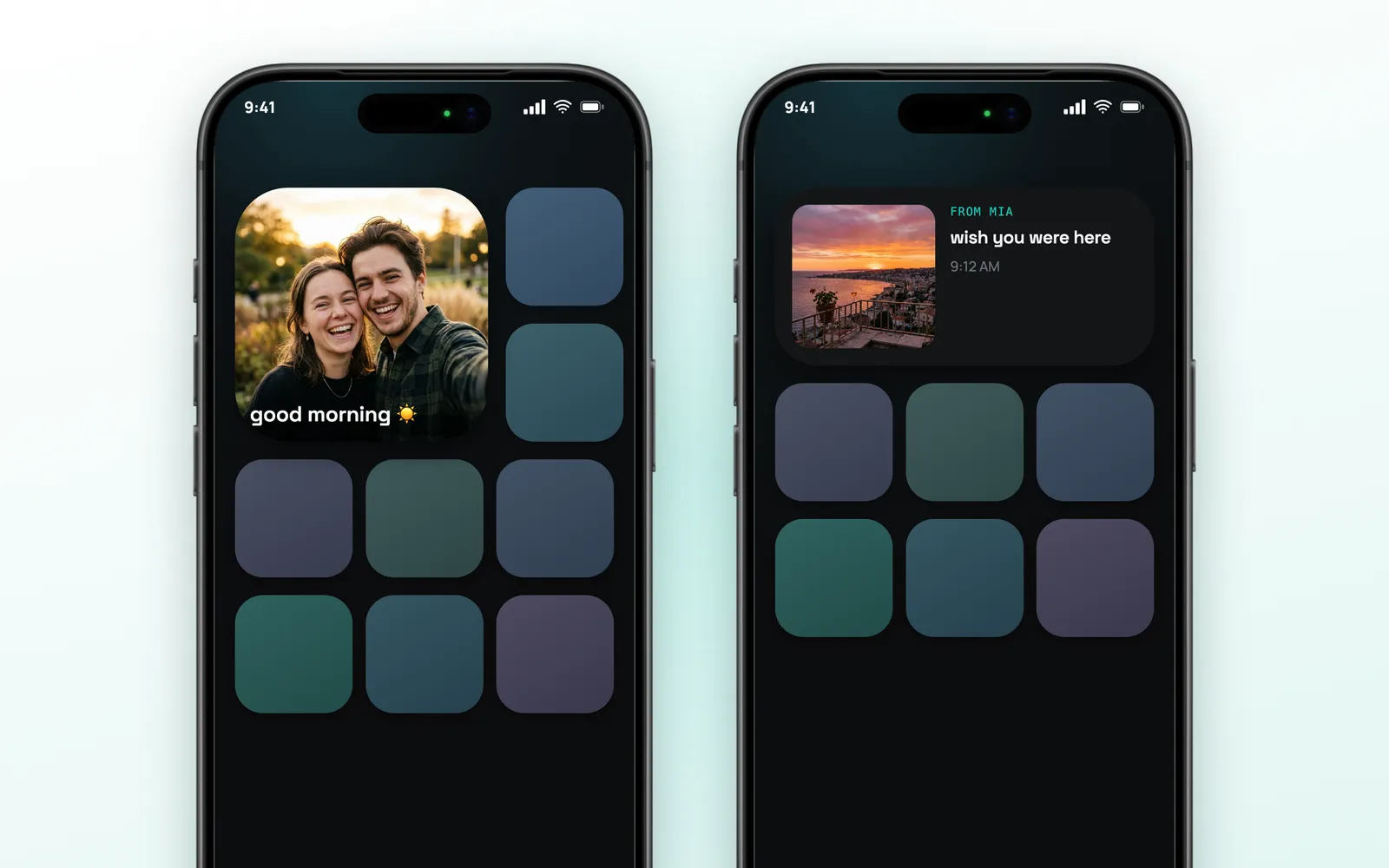
- Small: the latest photo fills the whole widget, with the caption over it. Best for a face you want to see at a glance
- Medium: the photo on the left, and on the right who sent it, the caption and the time. Best when the message matters as much as the photo
InstantWidget offers these two sizes. Nothing needs refreshing: when your partner sends something, the widget changes on its own.
A Widget Your Partner Updates
Most photo widgets show pictures you picked yourself. A shared widget works the other way: the photo on your Home Screen is the one the other person sent you, and yours is on theirs.
That is the idea behind InstantWidget. It is built for two people, with no feed and no public profile. Only the person you connect with sees what you send, and can react and comment on it.
Connect and Send
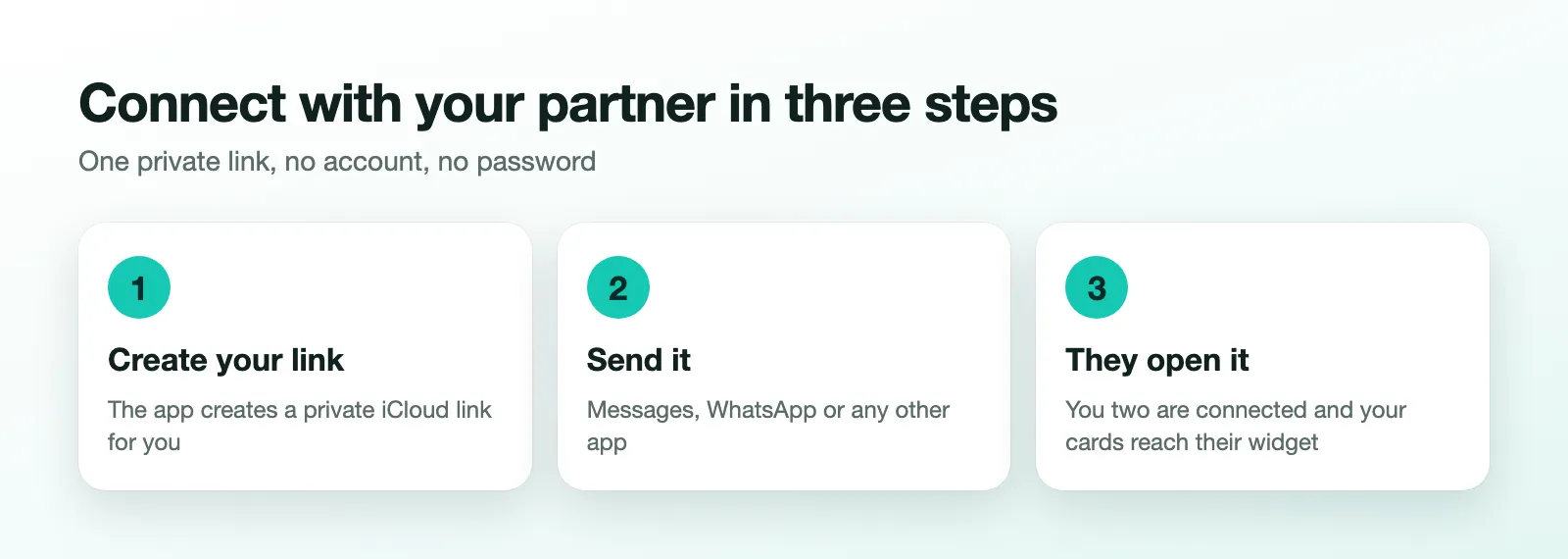
There is no sign-up. The app uses the iCloud account already on your iPhone and connects you through a private link. Both people need an iPhone signed in to iCloud.
Once connected, the app opens on the camera, with the name of your partner at the top. Choose a mode:
- Photo: shoot right there
- Video: hold to record a short clip
- Draw: a doodle on a white canvas
- Text: a few words on a colored card
Add a caption and tap Send. Everything you exchange is kept in the Activity tab, with filters for all, sent and received. On the photos you receive, you can add reactions and comments, and the other person sees them too.
100% Free
InstantWidget is 100% free: free to download and free to use every day, with no paid plan. You can send photos, videos, drawings and text, and add reactions and comments to the photos you exchange.
Suggestion: A Photo Widget for Two
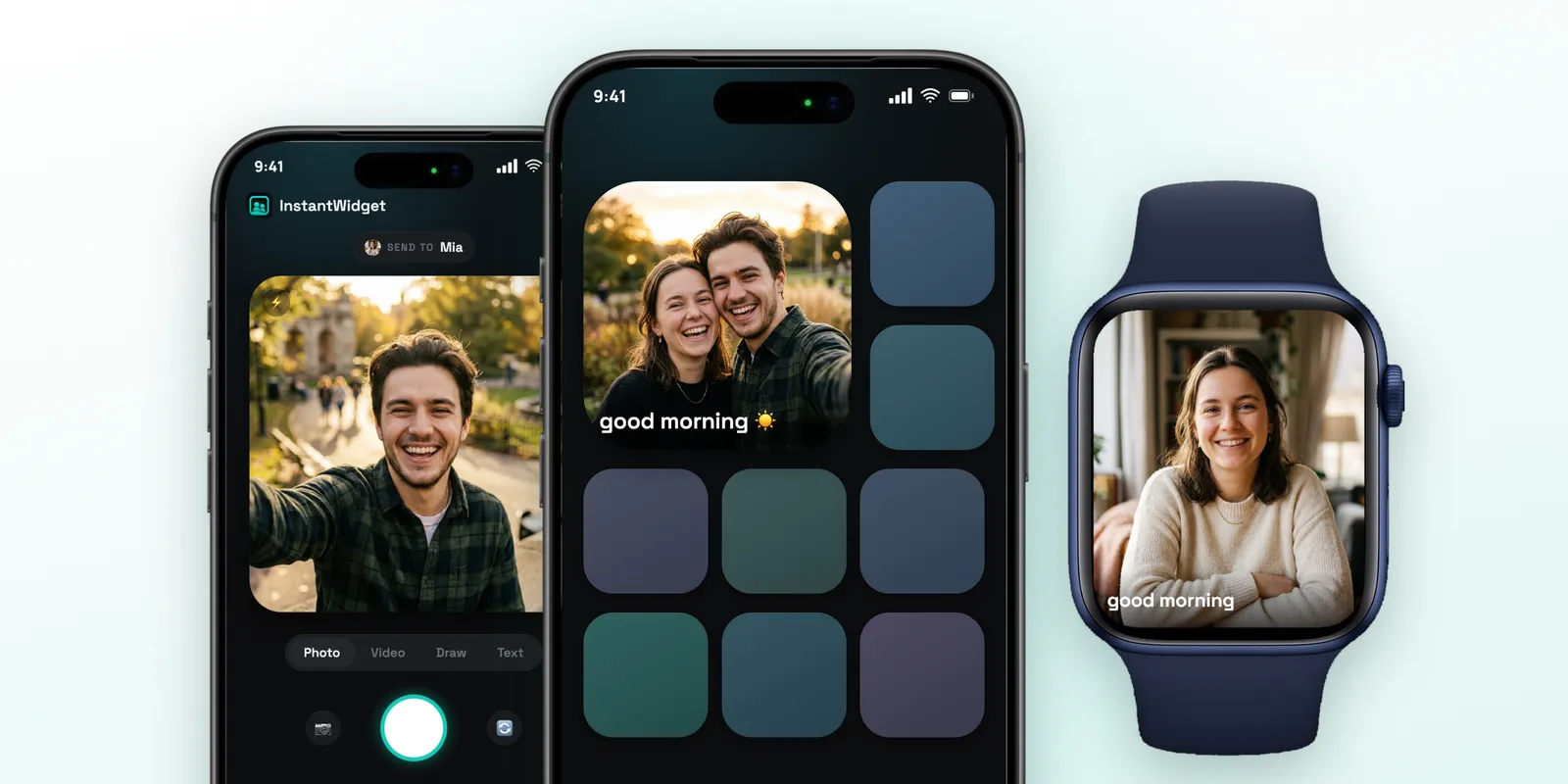
If you want the photo on your Home Screen to come from someone else, InstantWidget is the simple way: one person, one widget, no account. It runs on iPhone (iOS 17 or later) and iPad as the iPhone app, and has an Apple Watch app with the latest photo and complications. Read the full review or compare it in InstantWidget vs Locket, noteit and Widgetable.

Sources
Consulted on November 19, 2026.
- The app: the store listing of InstantWidget: Couples & BFFs, version 1.02, and the app’s own widget setup, connection and send screens
The images show the app with sample data.