ShotSession Review: The IPSC Shot Timer App for iPhone and Apple Watch
In practical shooting, the score is points divided by time. You can hit every target and still lose the stage to someone who drew two tenths faster. That is why IPSC and USPSA shooters train with a shot timer: a beep starts the clock, and the device writes down the moment of every shot.
The problem is what happens after. A dedicated timer shows the numbers of the last string and forgets them when you press the button again. Whether your draw is faster than last month is a question most shooters answer from memory, or from a notebook they stopped filling in weeks ago.
Why ShotSession Is Different
Most shot timer apps do one thing: beep and count. ShotSession is a shot timer that keeps everything. Each run goes into a session, each session goes into your history, and the history turns into charts that show if you are getting faster.
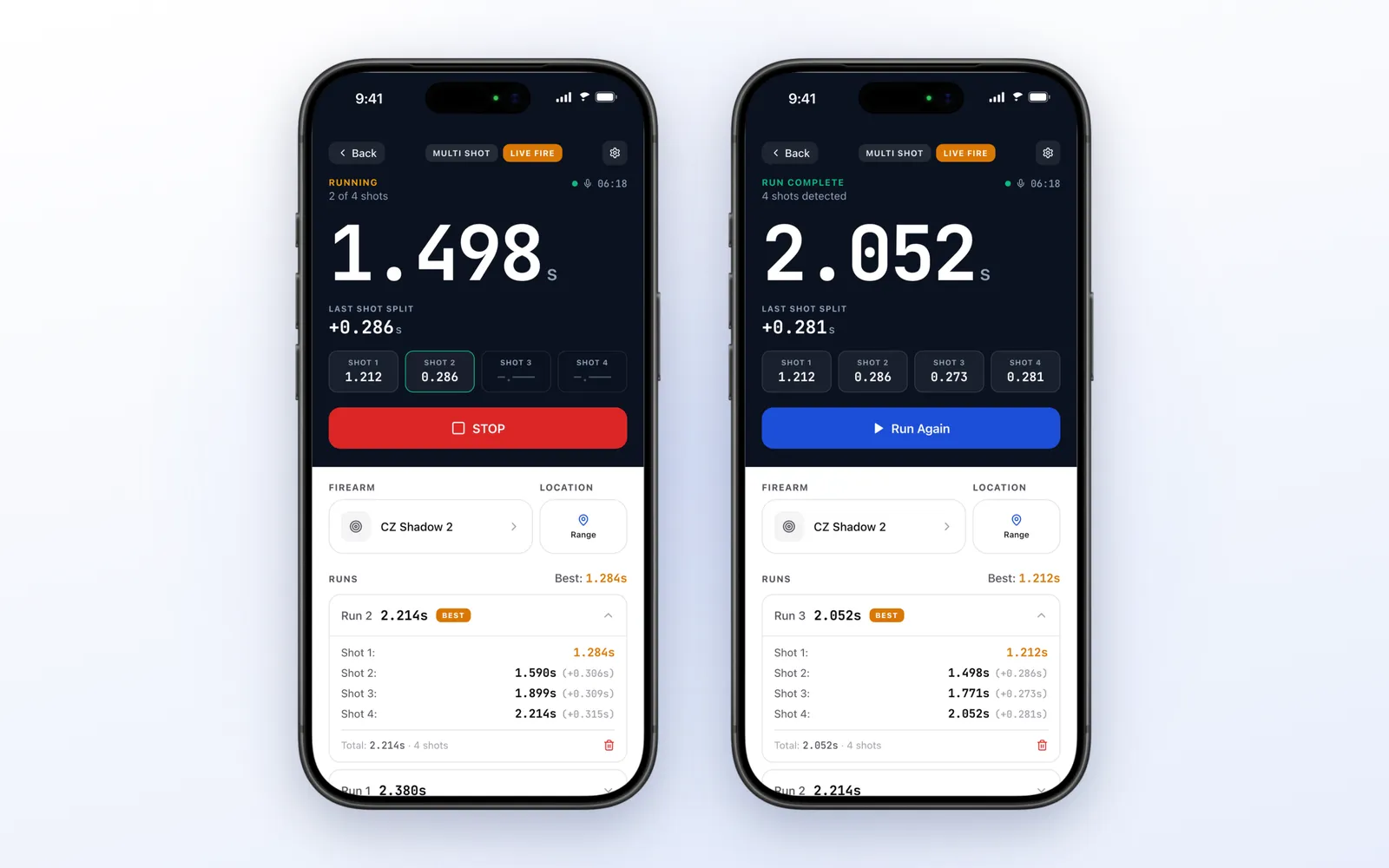
The picture shows one run in the middle and at the end. You tap the button, wait for the beep, draw and fire. The iPhone listens through the microphone and stamps each shot. The big number is the time since the beep, and Last shot split is the gap between the last two shots. The four boxes below hold the first shot and the splits that followed.
When the run ends it goes to the list below, with the time of every shot. The fastest first shot of the session gets the BEST tag. Then you tap Run Again and do it one more time.
A note on precision: times are shown to the thousandth of a second, and the reading comes from the phone’s microphone level. It is a training tool, not a certified match timer.
Table of Contents
- Why ShotSession Is Different
- Dry Fire and Live Fire
- Drills, Par Time and the Random Delay
- The Session Log
- Analytics
- Share Cards
- Apple Watch
- Offline and Accounts
- Apple Ecosystem Score
- Pricing
- Alternatives
- Verdict
Dry Fire and Live Fire
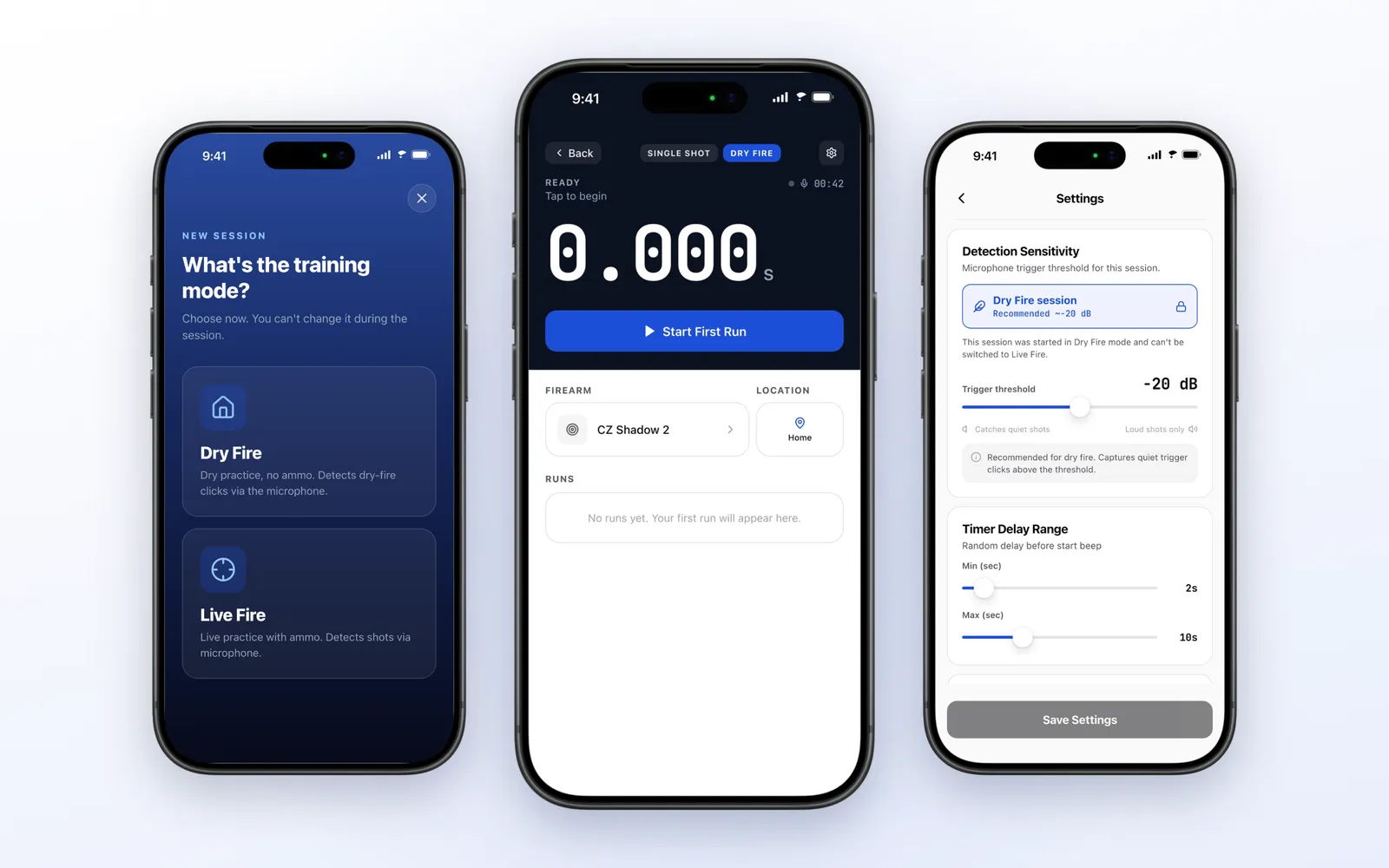
Every session starts with one question: Dry Fire or Live Fire. The choice is locked for that session, because it changes how the app listens.
- Live Fire: only very loud sounds count. The recommended threshold is around -10 dB, close to the limit of the microphone, so talk and steel clatter do not register
- Dry Fire: the app listens for the click of the trigger, from about -20 dB. This is the mode for practicing your draw at home, with no ammunition
Dry fire is where the app earns its place. Most improvement in draw speed comes from repetitions at home, and a timer that hears a dry click turns ten minutes in the living room into numbers you can compare.
If shots are missed or noise is counted, the Detection Sensitivity card in Settings lets you move the threshold between -40 and 0 dB. The app warns you when you leave the recommended value. There is also a help screen that goes through the usual causes in order: threshold, ambient noise, echo filter, a case covering the microphone, and beep volume.
Dry fire works best in a quiet room. At a busy range, shots from the next lane can be picked up too, and the app says so.
Drills, Par Time and the Random Delay
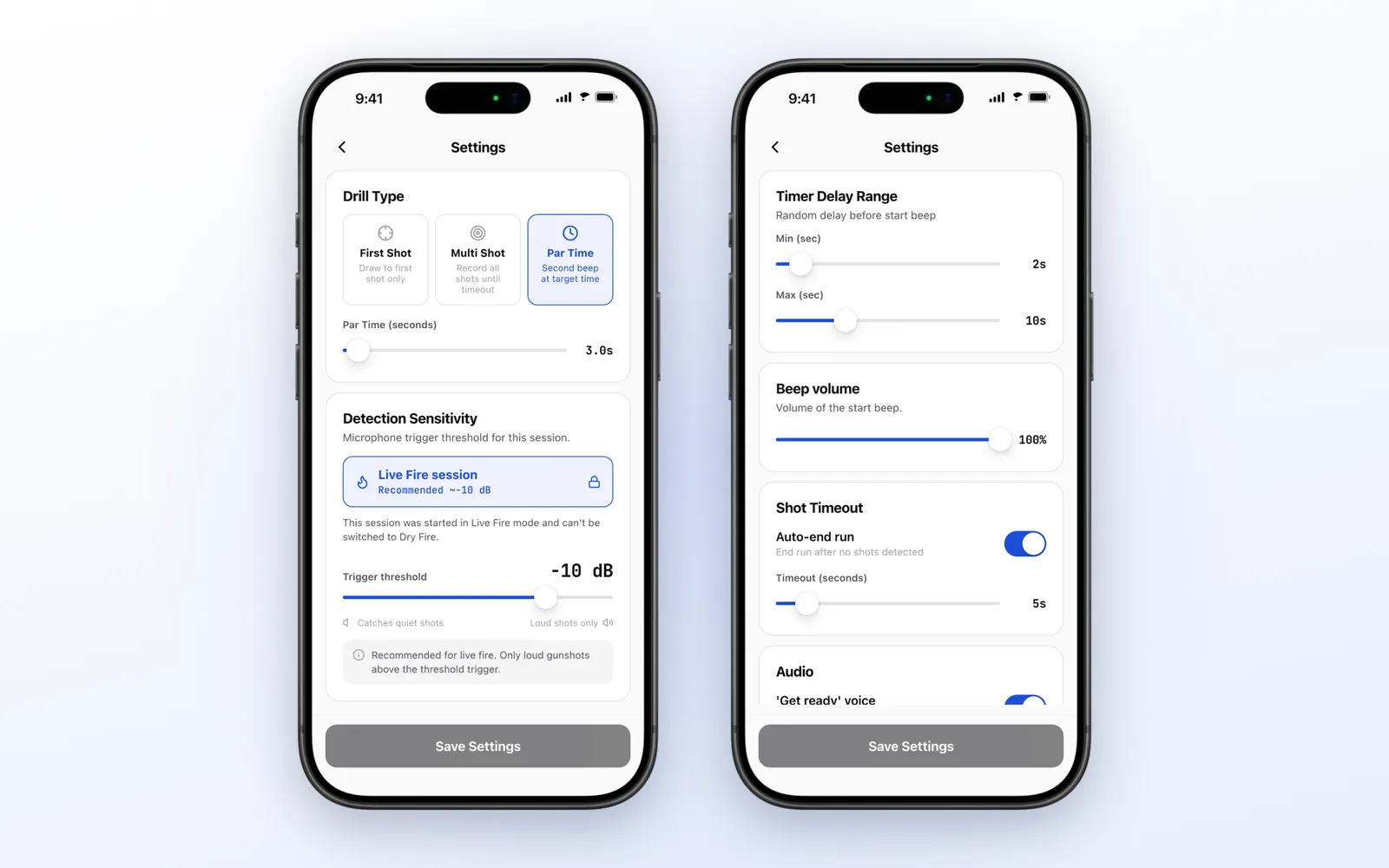
There are three drill types:
- First Shot: the run stops at the first shot. This is the draw drill
- Multi Shot: records every shot until you stop or until no shot is heard for a few seconds
- Par Time: a second beep sounds at the target time you set, from 1 to 30 seconds
The start works like a match. After you tap, a voice says “get ready” and the beep comes after a random delay, so you cannot anticipate it. The default range is 2 to 10 seconds and you can change both ends.
The rest of Settings is the kind of detail a shooter asks for:
- Beep volume, from silent to full
- Auto-end run: ends the run after a set time without shots, 5 seconds by default
- Echo filter: the minimum time between two shots, 350 ms by default, so an echo indoors is not counted as a second shot. If your splits are faster than that, lower it
The Session Log
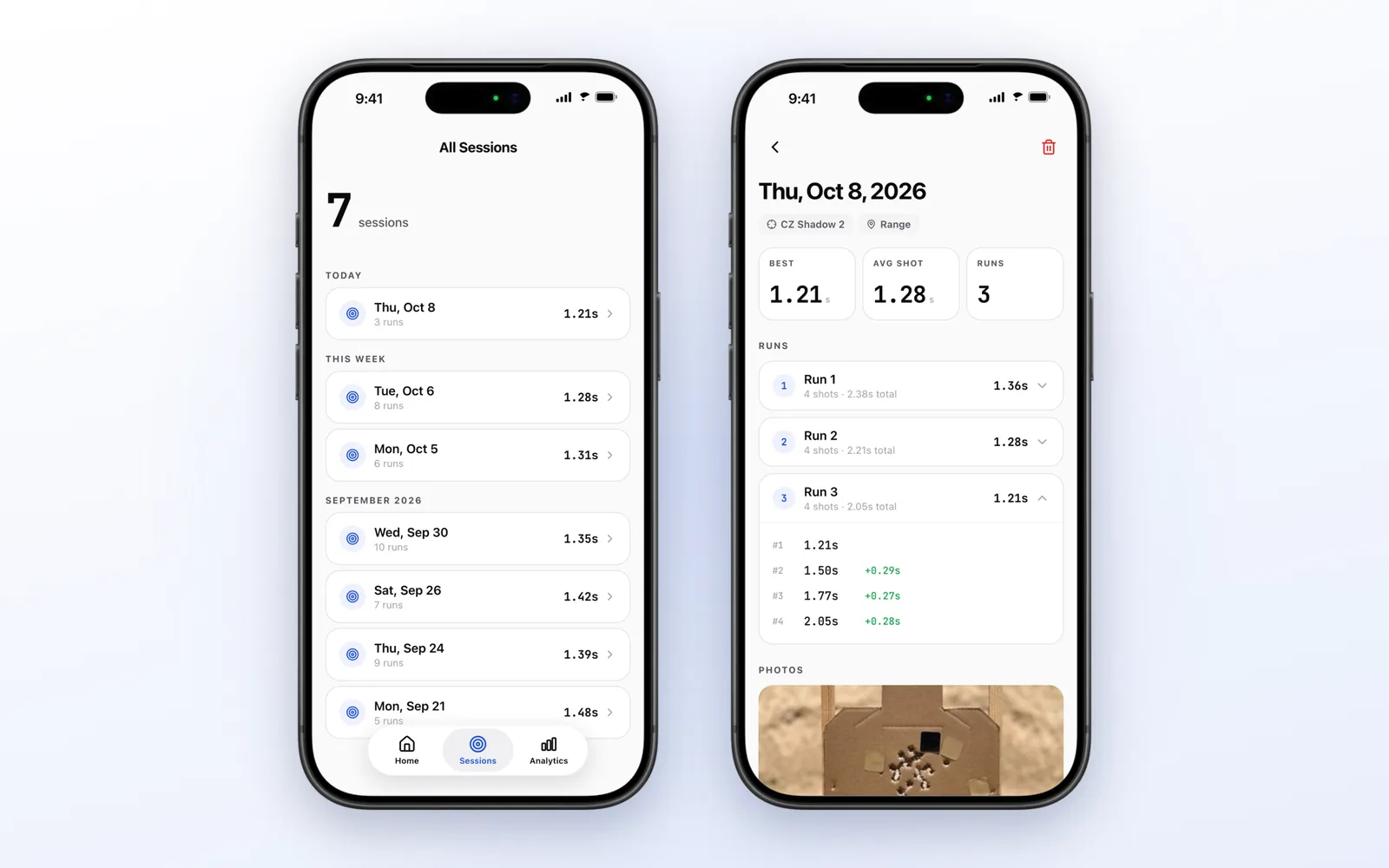
A session is more than a list of times. Before or during the runs you can set:
- Firearm: pick from a catalog of popular competition pistols or add your own, with a photo
- Location: save your ranges as Indoor, Outdoor or Home. With permission, the app stores the coordinates
- Photos: take a picture of the target or choose one from the library, up to five per session
The session screen shows the best first shot, the average and the number of runs. Opening a run shows every shot with its split. If you leave in the middle, Home shows Session in Progress and you continue where you stopped. A finished session can be reopened with Continue Session, for example after pasting new targets.
The Sessions tab groups everything by date: today, this week, and then by month.
Analytics
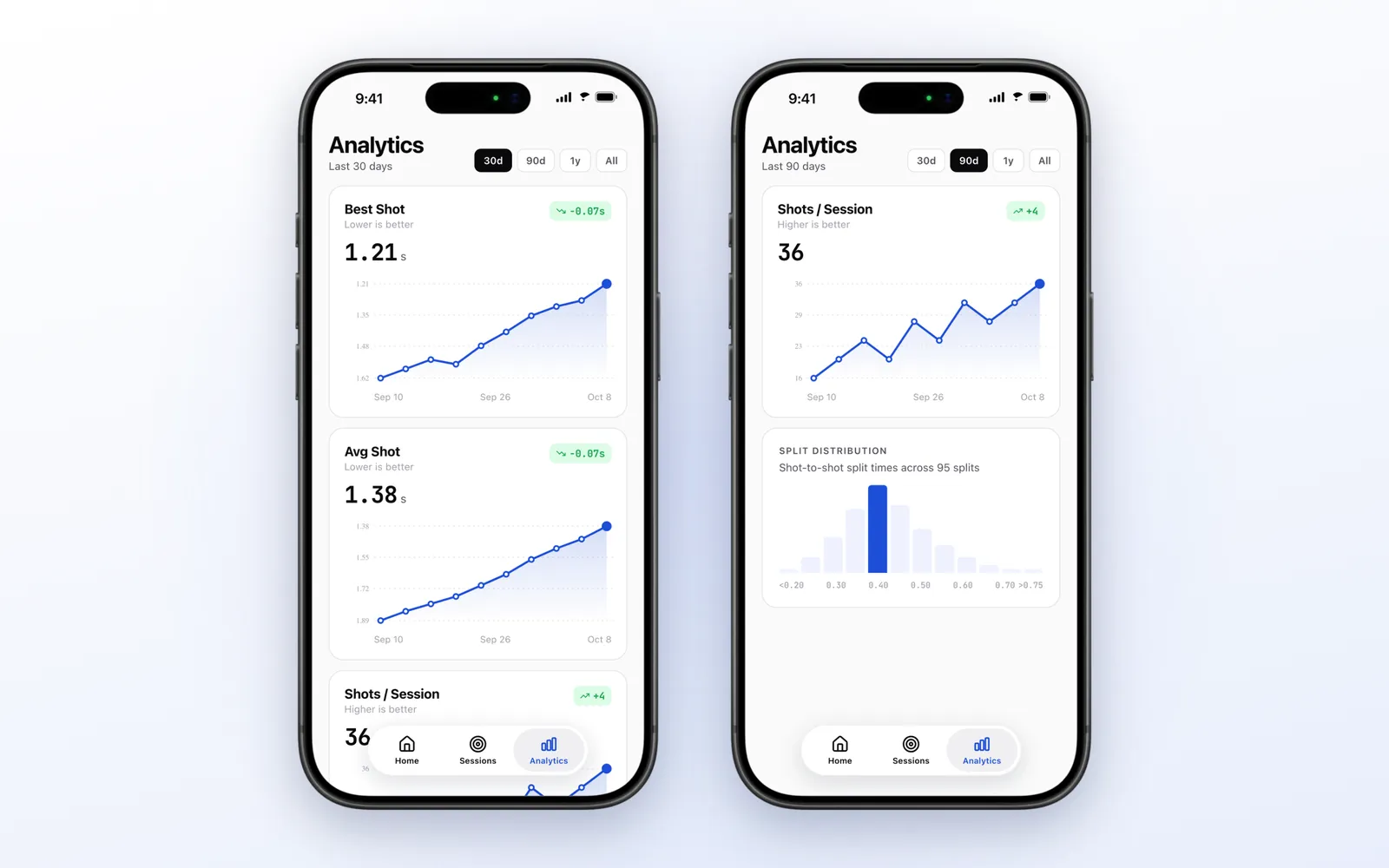
This is the part a dedicated timer does not have. The Analytics tab builds one chart per metric, with one point per session:
- Best Shot and Avg Shot: your best and your average first shot. Lower is better
- Shots / Session: how much you are training
- Best Multi Shot and Best Single Shot: the same metric separated by drill, when you have both
- Split Distribution: a histogram of all your shot to shot times, from under 0.20 s to over 0.75 s, with the most common range highlighted
Each chart shows the change from the previous session in a small tag, green when you improved. You choose the period: 30 days, 90 days, 12 months or everything.
Before your first session, the tab shows example numbers with an EXAMPLE banner, so you can see what it will look like without mistaking the demo for your data.
Share Cards
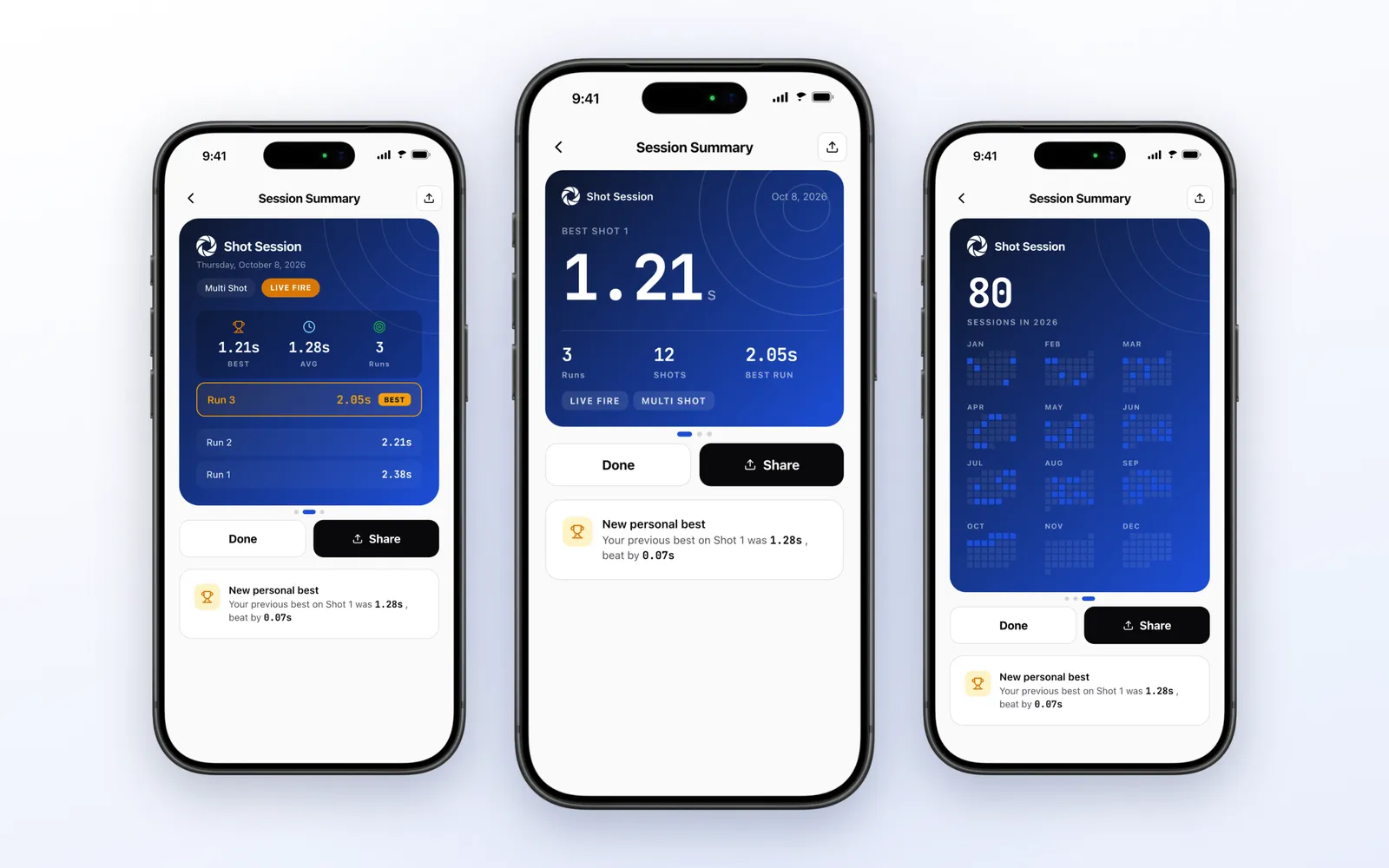
When you tap Save & Finish Session, the app opens a summary with three cards you swipe between:
- Classic: the best first shot in large type, with runs, shots and best run
- Detailed: best, average and the ranking of your fastest runs
- Year: a calendar of the year with every day you trained
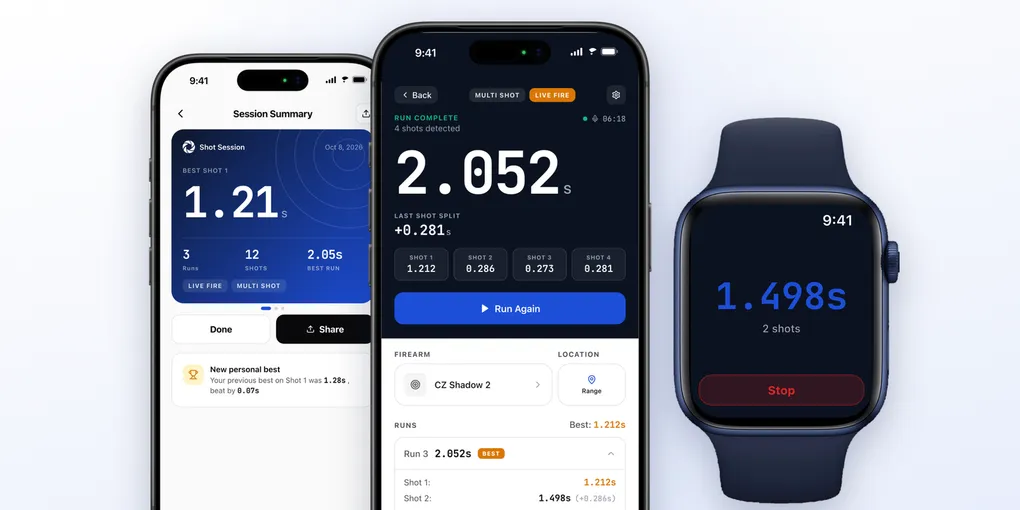
Share exports the card you are looking at as an image, to send in any app. If the session beat your previous best first shot, a New personal best note appears below with the old time and the difference.
Apple Watch
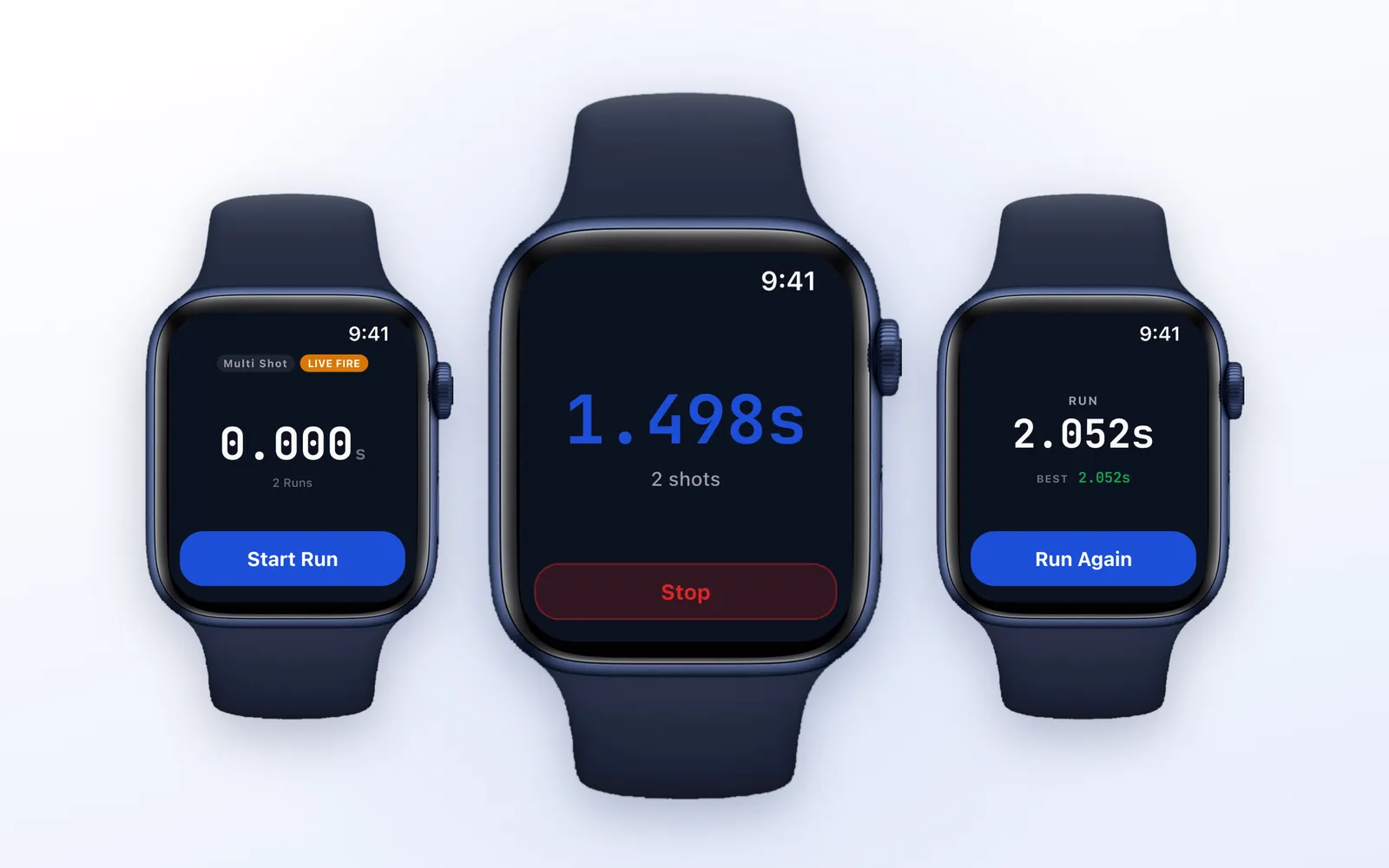
With the phone on a table or a tripod, the Watch becomes the remote. Once a session is open on the iPhone, the Watch shows the drill and the mode, and a Start Run button.
- During the delay it shows
GET READY, and you can cancel - At the beep you feel a tap on the wrist, timed to the sound
- While you shoot it shows the running time and the shot count, with a tap for each shot the iPhone hears
- In Par Time, a bar shrinks until the second beep
- At the end it shows the time of the run and the best of the session, with Run Again
The iPhone does the listening. The Watch starts and stops runs and shows what the phone measured, so the phone needs to stay nearby. Ending the session stays on the iPhone on purpose.
The Watch app is part of the subscription and follows the Watch’s own language, in the same nine languages as the iPhone app.
Offline and Accounts
Ranges often have no signal, and the app is built for that. Sessions, runs and photos are saved on the iPhone first. When there is a connection and you are signed in, they sync to your account, and a screen shows what is still pending.
Creating an account is optional. You can sign in with Apple, Google or a code sent by email to back up your history, and delete the account from the Profile screen.
Apple Ecosystem Score
| Feature | Available | Notes |
|---|---|---|
| iPhone | ✅ | iOS 15.1 or later |
| iPad | ✅ | Runs the iPhone app |
| Apple Watch | ✅ | Starts runs, live time and shot count |
| Watch haptics | ✅ | Tap at the beep and at each shot |
| Sign in with Apple | ✅ | Optional, for backup and sync |
| Mac | ❌ | No Mac app |
| Live Activity & Dynamic Island | ❌ | Not yet |
| Home Screen widgets | ❌ | Not yet |
| Siri / Shortcuts | ❌ | Not yet |
Score: 5/9. ShotSession puts its effort where a shooter needs it: the microphone, the Watch on the wrist and haptics at the beep. A Live Activity with the running time would be the natural next step.
Pricing
ShotSession is free to download. You can go through the app, see the example sessions and charts, and read how a run works. Starting a training session requires Shot Session Pro, a subscription whose plans and prices vary by region. The app shows the plans for your country before you subscribe.
Alternatives
| App | Price | Best For |
|---|---|---|
| ShootOnTime: Par Timer | Free download | Par time practice |
| Par Timer Pro: Firearm Trainer | Free download | Par time drills |
| Shot Timer - Range Trainer | Free download | A timer for the range |
| Gun Shot Timer | Free download | A classic shot timer |
| Dry Fire Timer | $8.99 | Dry fire with a one-time purchase |
These apps are timers first. ShotSession is a timer with a training log behind it: sessions, firearms, target photos, charts and an Apple Watch remote.
Verdict
4.8 / 5 ⭐
ShotSession replaces two things at once: the shot timer on your belt and the notebook in your range bag. The timer is quick to use, dry fire at home counts as real training data, and the charts answer the question that matters, which is whether you are getting faster.
The downsides: you need a subscription to train, detection depends on the phone’s microphone and on a quiet enough place, there is no Live Activity or widget, and it is not a certified match timer.
Recommended for: IPSC and USPSA shooters, and anyone who practices draws and splits, who want every session recorded and compared without writing anything down.
