How to Use the Pomodoro Technique With a To-Do List: A Daily System for iPhone and Mac
A timer alone tells you when 25 minutes are over. It does not tell you what to do in them. A to-do list alone tells you everything you could do, and nothing about how much of it fits in a day.
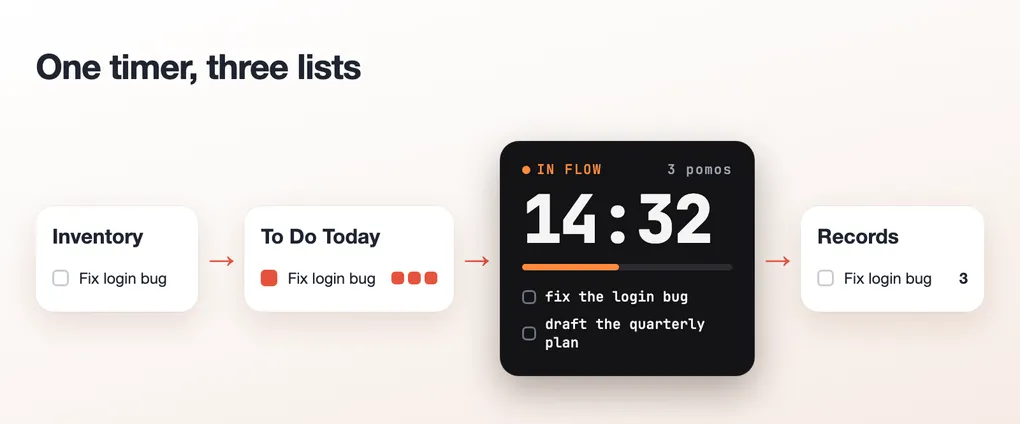
The Pomodoro Technique was never only a timer. In the paper that describes it, Francesco Cirillo asks for a kitchen timer and three sheets of paper: a list of everything to do, a list for today and a record of what was done. This guide takes that system and runs it on an iPhone and a Mac.
Tools change. Check the sources before you adapt the method.
Table of Contents
- The Original Technique Had a List
- Step 1: Put Everything in One Inventory
- Step 2: Estimate in Whole Pomodoros
- Step 3: Choose Today’s List
- Step 4: Run the Pomodoro and the Breaks
- Step 5: Handle Interruptions
- Step 6: Close the Day
- Why the Break Is Part of the Work
- What to Look for in an App
- Common Mistakes
- Suggestion: an App That Runs This System
- Sources
The Original Technique Had a List
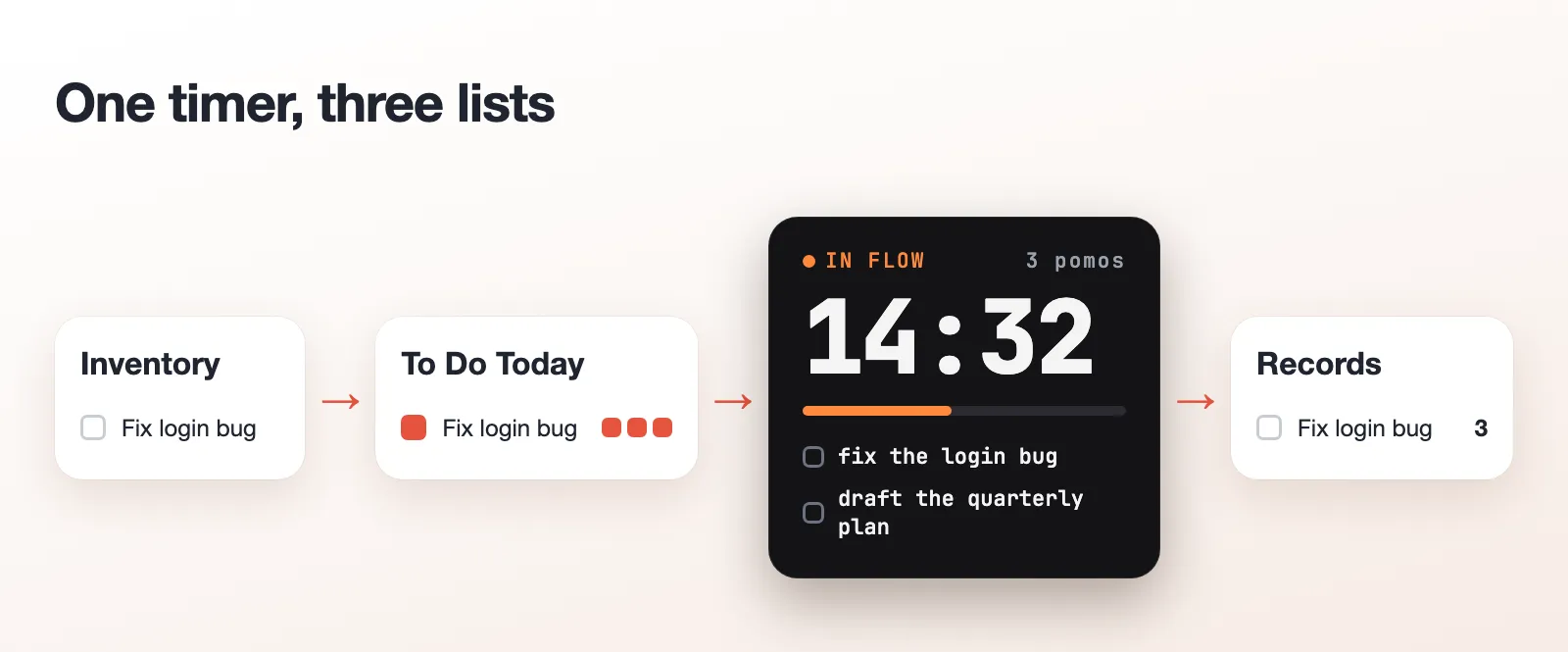
Cirillo’s paper lists what you need to start: a timer, a To Do Today sheet, an Activity Inventory sheet and a Records sheet. Each one has a clear job.
| Original sheet | What it holds | On a phone or a Mac |
|---|---|---|
| Activity Inventory | Activities noted as they come up, checked off at the end of the day | A full to-do list |
| To Do Today | The things to do that day, in order of priority, plus “Unplanned & Urgent” | A Today list |
| Records | Date, description and pomodoros of effort, updated at least once a day | An end of day report |
The timer is the smallest part. A pomodoro is 25 minutes of work plus a 5-minute break, and it is the unit you count with.
Step 1: Put Everything in One Inventory
Write down every activity as it comes up, in one place, even the small ones. The inventory is not a plan, it is where nothing gets lost. At the end of the day you check off what was done.
On a phone this is the plain to-do list. The only rule is that there is one: if tasks live in three apps, none of them is the inventory.
Step 2: Estimate in Whole Pomodoros
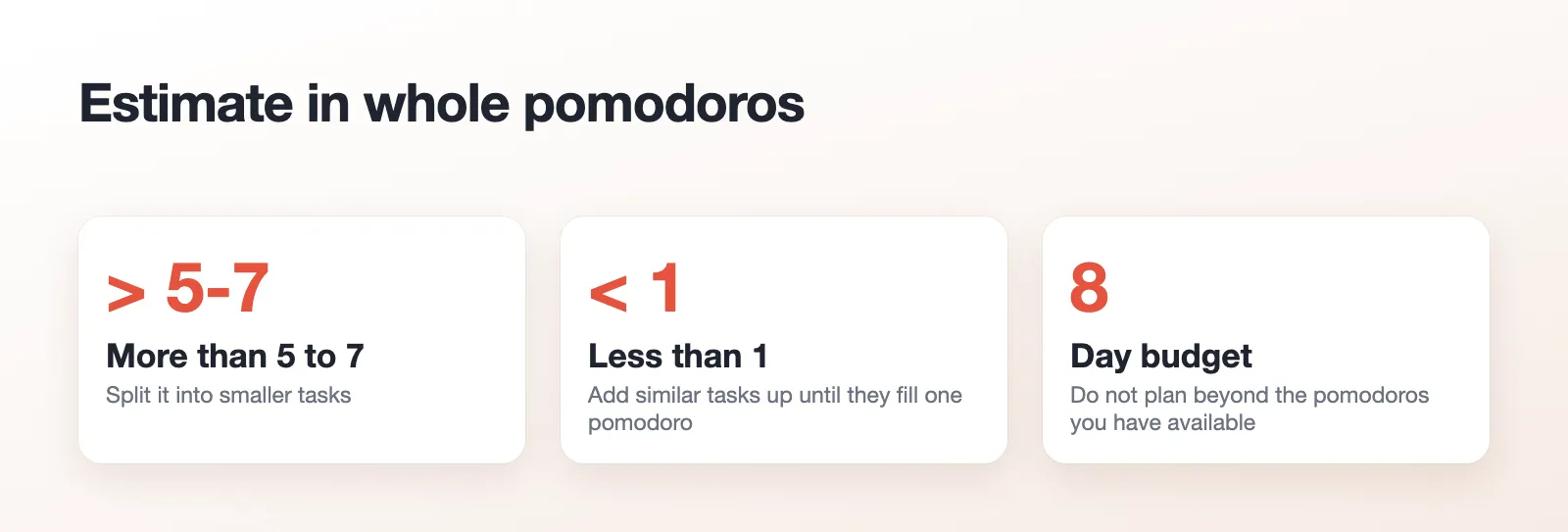
Each morning, estimate how many pomodoros each activity needs. Cirillo’s rules are short:
- Whole pomodoros only. A task of five and a half becomes six
- More than 5 to 7 pomodoros: break the activity into smaller ones and estimate them separately
- Less than one pomodoro: add similar activities up until they fill one pomodoro. The rule is “If It Takes Less Than One Pomodoro, Add It Up”
The estimate is a number you will compare with what happened, not a promise.
Step 3: Choose Today’s List
Decide how many pomodoros you have today. Cirillo’s example uses eight. Then pick activities from the inventory, in order of priority, until the estimates add up to that number.
There is no point in adding activities beyond the available pomodoros. If you finish early, you pick more from the inventory.
Write each pick with one box per estimated pomodoro. That is the whole of the “To Do Today” sheet.
Step 4: Run the Pomodoro and the Breaks
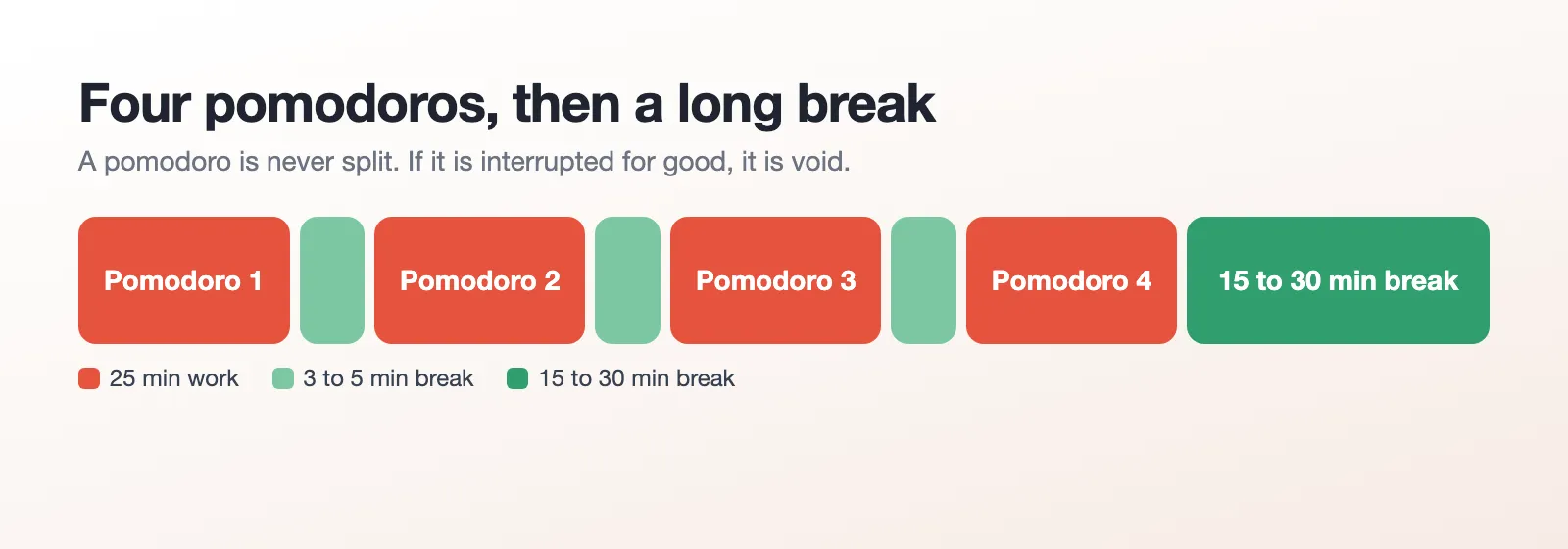
Set 25 minutes and work on the first activity. When it rings, mark an X next to the activity and take a 3 to 5 minute break. Every four pomodoros, take a longer break of 15 to 30 minutes.
Two rules keep it honest:
- A pomodoro is indivisible. If it is interrupted for good, it is void, as if it had never been set, and you start a new one
- When it rings, you stop. Cirillo does not allow “a few more minutes”, even if you think you could finish
Step 5: Handle Interruptions
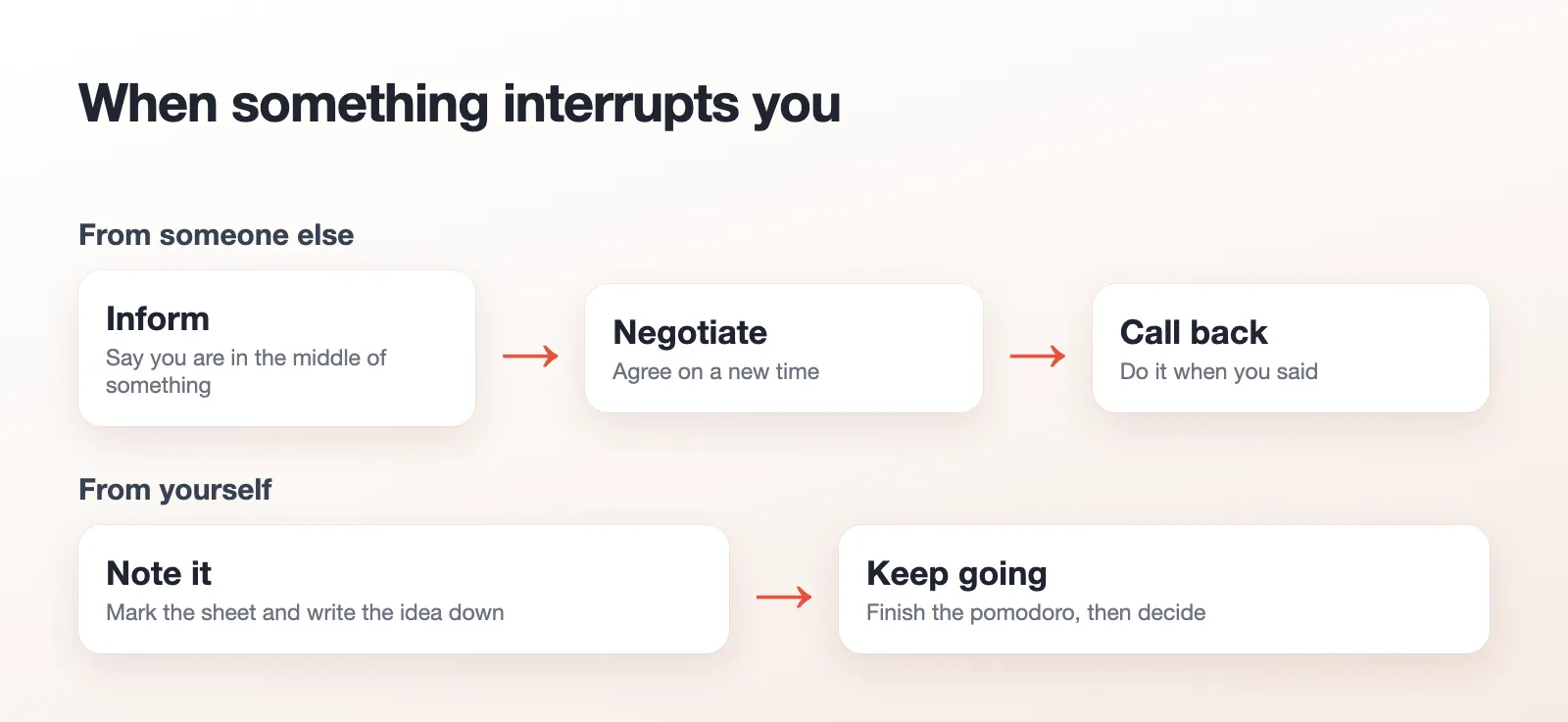
Interruptions are the reason most days do not go as planned, so the technique gives them a procedure.
- From someone else: inform that you are in the middle of something, negotiate a new time and call back as agreed
- From yourself: put a mark on the sheet, write the idea in the inventory (Cirillo marks it with a “U” for unplanned) and keep going until the pomodoro rings
- Truly urgent: write it under “Unplanned & Urgent” on today’s sheet. If it cannot wait, void the pomodoro
The rule behind all of this: once a pomodoro begins, it has to ring.
Step 6: Close the Day
At the end of the day, transfer the completed pomodoros to the records. Cirillo suggests a hard copy archive or, more conveniently, a spreadsheet or a database, and deleting the completed activities from the inventory.
This is where the estimates pay off. Compare what you planned with what happened, and your next day’s estimates get better.
Why the Break Is Part of the Work
The 5-minute break is not a reward. Cirillo says the break lets the mind absorb what was learned in the last 25 minutes, and warns against mentally demanding things during it, like important emails.
Research on short breaks points the same way, with limits. A 2022 meta-analysis in PLOS ONE (22 samples, 2,335 people) found that micro-breaks of 10 minutes or less had small positive effects on vigor (d = .36) and on fatigue (d = .35). The effect on overall performance was not statistically significant. The authors found better results on less demanding tasks and with longer breaks.
So the break is for how you feel. Do not expect it to speed up a hard task by itself.
What to Look for in an App
On an iPhone or a Mac, almost any timer works. What decides is whether the system fits in one place.
- Timer and list together. If you have to leave the timer to open the list, you stop doing it
- A Today list apart from the full list. That is the inventory and the To Do Today sheet
- Adjustable durations. 25 and 5 are the traditional values, not a law
- A long break every few pomodoros, automatic
- An end of day summary, so the records are not manual
- Sync between your devices. A day often starts on the phone and continues on the computer
Common Mistakes
- Planning more pomodoros than you have. Eight is an example from the paper, not a goal to beat
- Splitting a pomodoro to answer a message. It is void, not paused
- Skipping the break “to finish this one thing”
- Keeping the inventory in several places
- Never looking at the records. Without them the estimates do not improve
Suggestion: an App That Runs This System
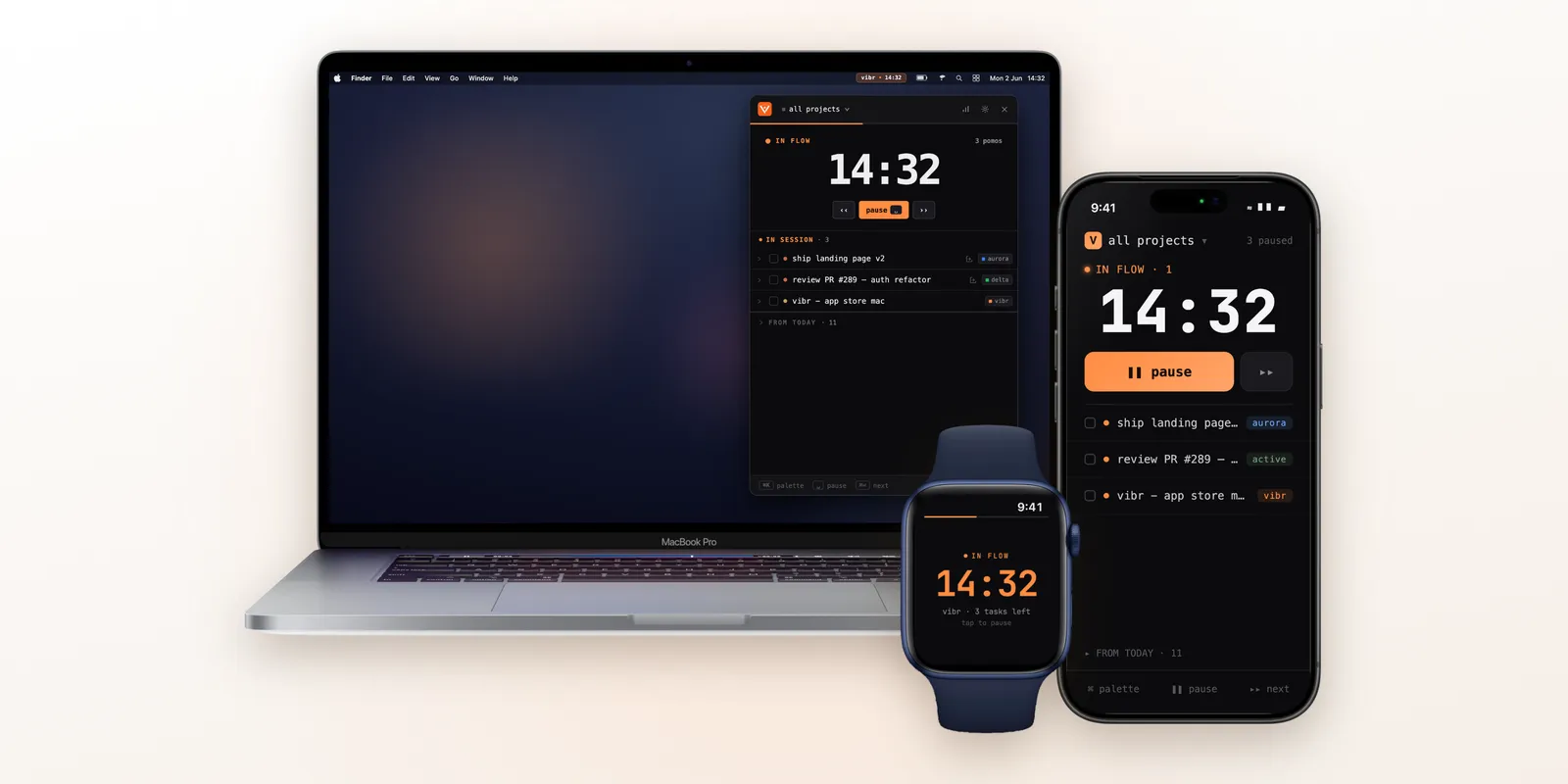
If you want the system without the paper, Vibr is a Pomodoro app for iPhone, Mac and Apple Watch with the task list built in. Its first screens say what it is for: stop losing the day to distractions, a Pomodoro timer that keeps you on task, pick today’s tasks and clear your list, start on iPhone and keep going on Mac, breaks that actually recharge you, and see where your focus went.
How that maps to the steps above:
- The timer and the Today list: you pick the tasks for the next 25 minute session and start. Tasks are organized by project, and there is a Today list for the day plus a To Do list for everything else
- Durations: focus from 5 to 90 minutes, breaks from 1 to 30, and a long break every Nth pomodoro, 4 by default
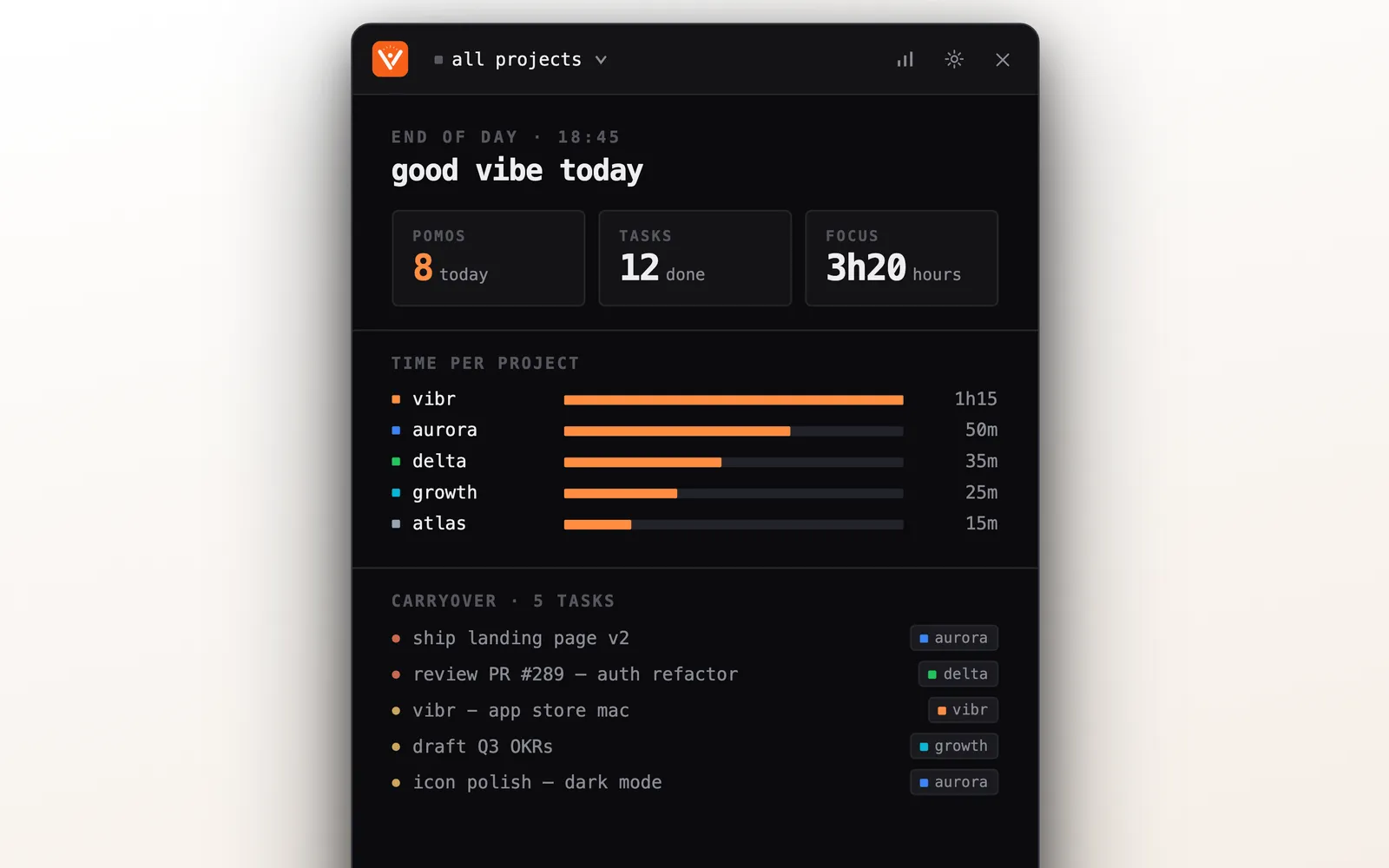
- The end of the day: an End of Day report with the time per project, the pomodoros done and the tasks to carry over
- iPhone and Mac: the timer lives in the Mac menu bar, and tasks, projects and pomodoros sync by iCloud, with no sign up
Vibr is free to download and has a Pro subscription. It runs on iPhone, Mac and Apple Watch (the iPad runs the iPhone app), with one purchase for all of them. It needs iOS 17, macOS 14 or watchOS 10.

Sources
Consulted on October 22, 2026.
- The Pomodoro Technique: Francesco Cirillo, The Pomodoro Technique (2006, hosted copy), for the sheets, the 25 and 5 minute pomodoro, the break every four pomodoros, the estimate rules, the eight pomodoros example, the interruption strategy and the records
- Breaks: Albulescu et al., “Give me a break!”, PLOS ONE 17(8), 2022
- Vibr: the App Store listing, version 1.2
The diagrams are drawn for this post. The Vibr images show the app with sample data.